
Back
How to Create a Group Coaching Program
EzyCourse Group coaching allows you to coach multiple participants at once in a group or batch formation. Ultimately, helping you to manage your group programs seamlessly.
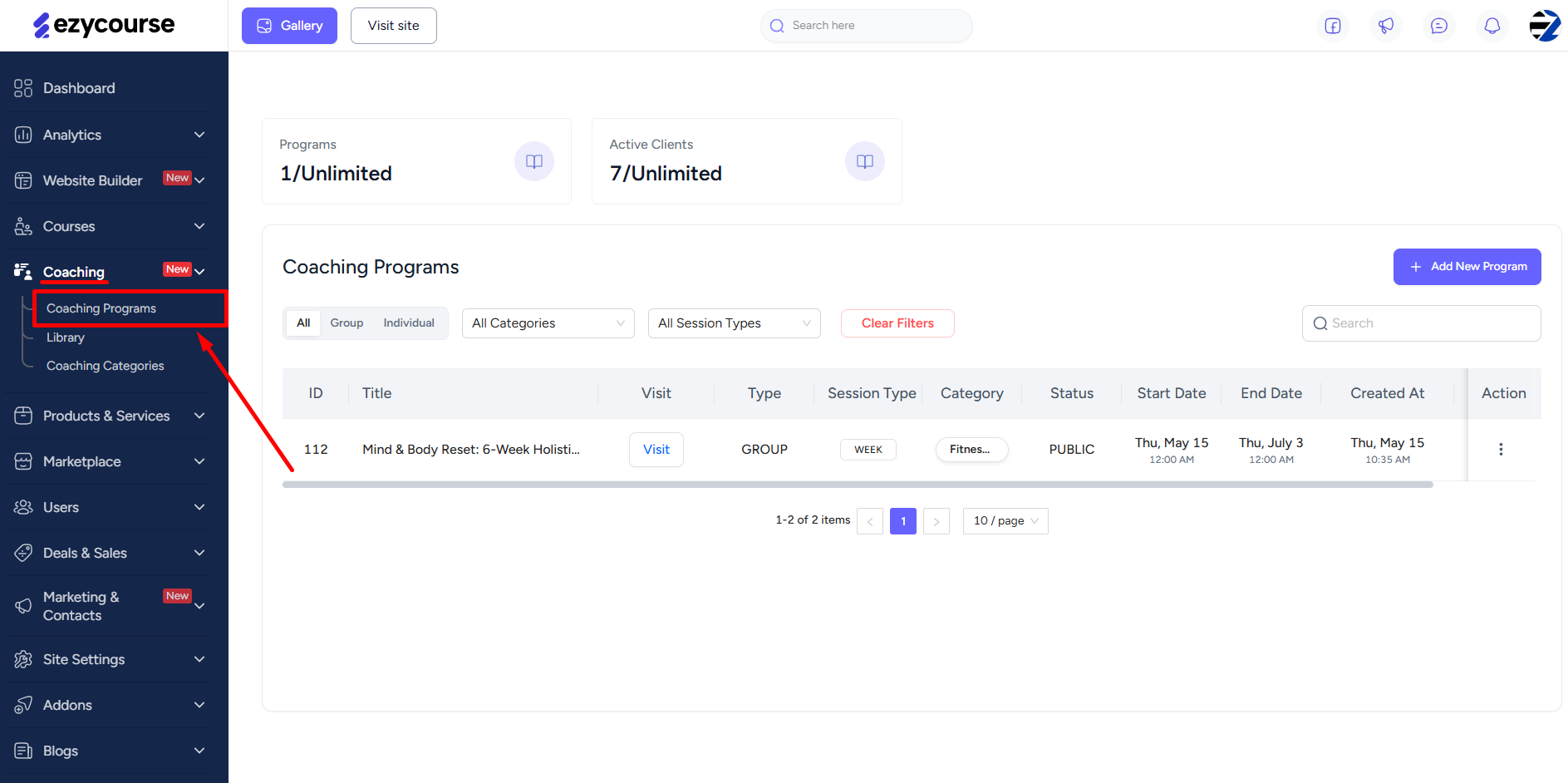
To create a group coaching program, head over to your EzyCourse dashboard. Go to Coaching -> Coaching Programs.
Here, you will find all the coaching programs you’ve created. You can also filter your programs easily using various types of filters.
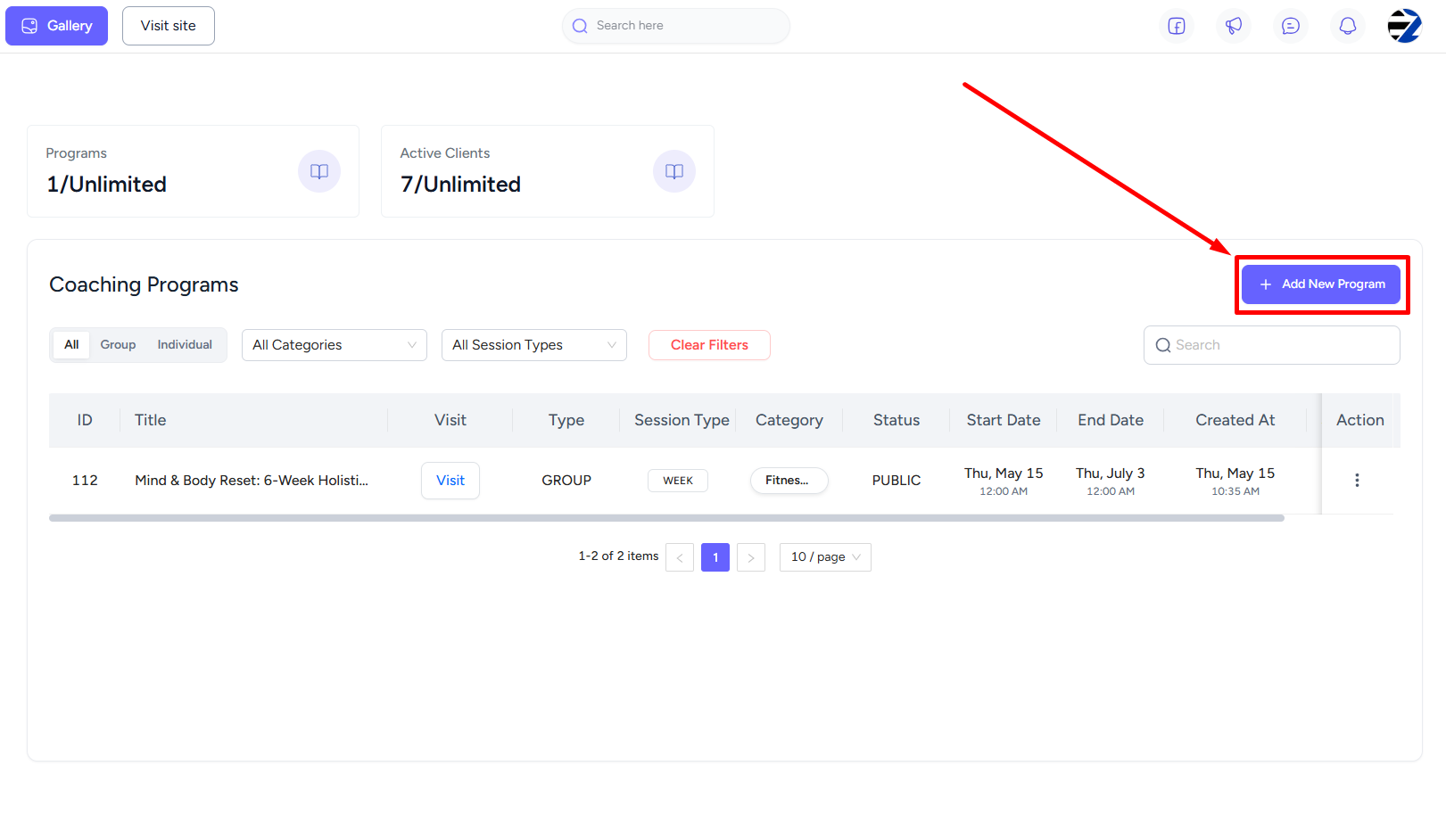
Now, click the Add New Program button to create a new coaching program.
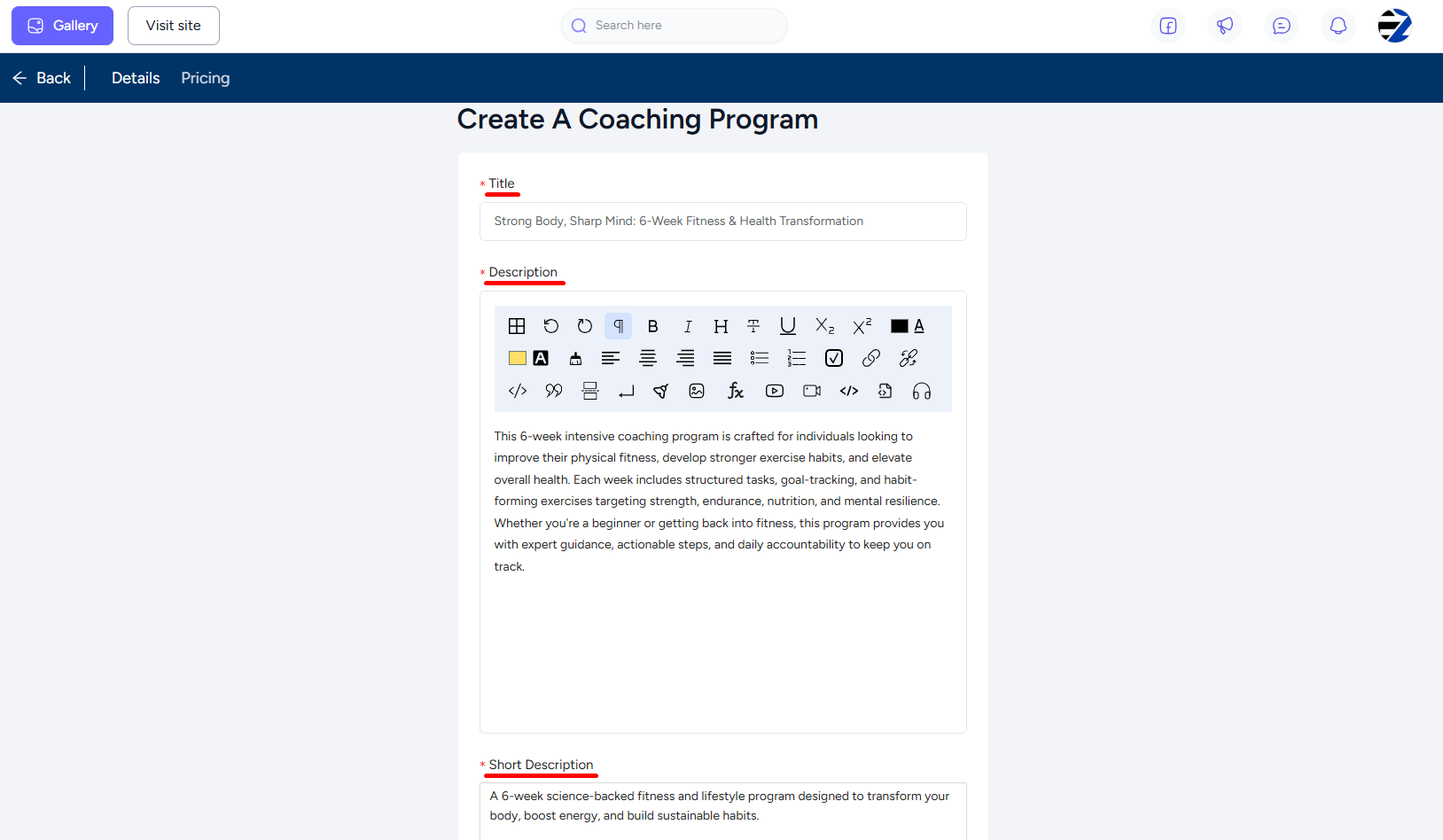
Here, you will need to provide a title, description, and select a category from the existing list. Or you can also create a new category by clicking the + icon in the dropdown option.
‘Read more’ : Create coaching categories

Next, configure the accessibility settings, which work similarly with any other EzyCourse product. You can set a limit on the number of clients allowed to join the program.

Select the submission visibility as either All or Own. Selecting ‘Own’ lets only you and the client view their own work submissions. You also have the option to turn on the habit tracking system from here. This lets you assign daily or weekly habits to your clients.

Now, pick any one from the available session types for the group coaching program. In this case, select Week based session. If you want, you can enable the Allow Submission on Previous Sessions toggle to allow your clients to submit tasks for previous sessions. If disabled, students can only submit for the current session.
[Note: This option is supported with week-based and continuous session types.]

Now, upload your program’s feature & banner images. If needed, you can also set an after-checkout page for your program. If not set, then the default page will be in action. Click Create to finalize creating your group program.

Add weeks to your coaching program by clicking the Add New Week(s) button inside the coaching feed.

Set Start & End date, select Week days, and the Starting day of the week. When done, click the Add button.
[Note: For week-based sessions, you can set the program duration max up to 550 days.]

For group coaching, you can assign lessons/items to all your coaching program clients at once using the Add Lesson or Add Item buttons.

Select any item, and then click the Assign to All button to assign the task successfully to your clients.

‘Also read’ : Set Pricing for Coaching Program
Add Coaching Program on Your Site